Creating a good crossword is the art of balancing engaging questions with a clear, readable grid. Our creator tool was designed to make this process as smooth as possible.
1. First Steps: Configuration (Wizard)
Before you start placing answers, you need to fill out the project “ID card” in the Crossword details section.
- Title and Description: Clearly state what the crossword is about. A good description helps players decide whether they’re up for the challenge.
- Categories and Tags: Choose a section that matches the theme. Tags make it easier for other users to find your work in our search engine.
- Language: If your profile supports multiple languages, make sure to select the one used in this particular crossword.
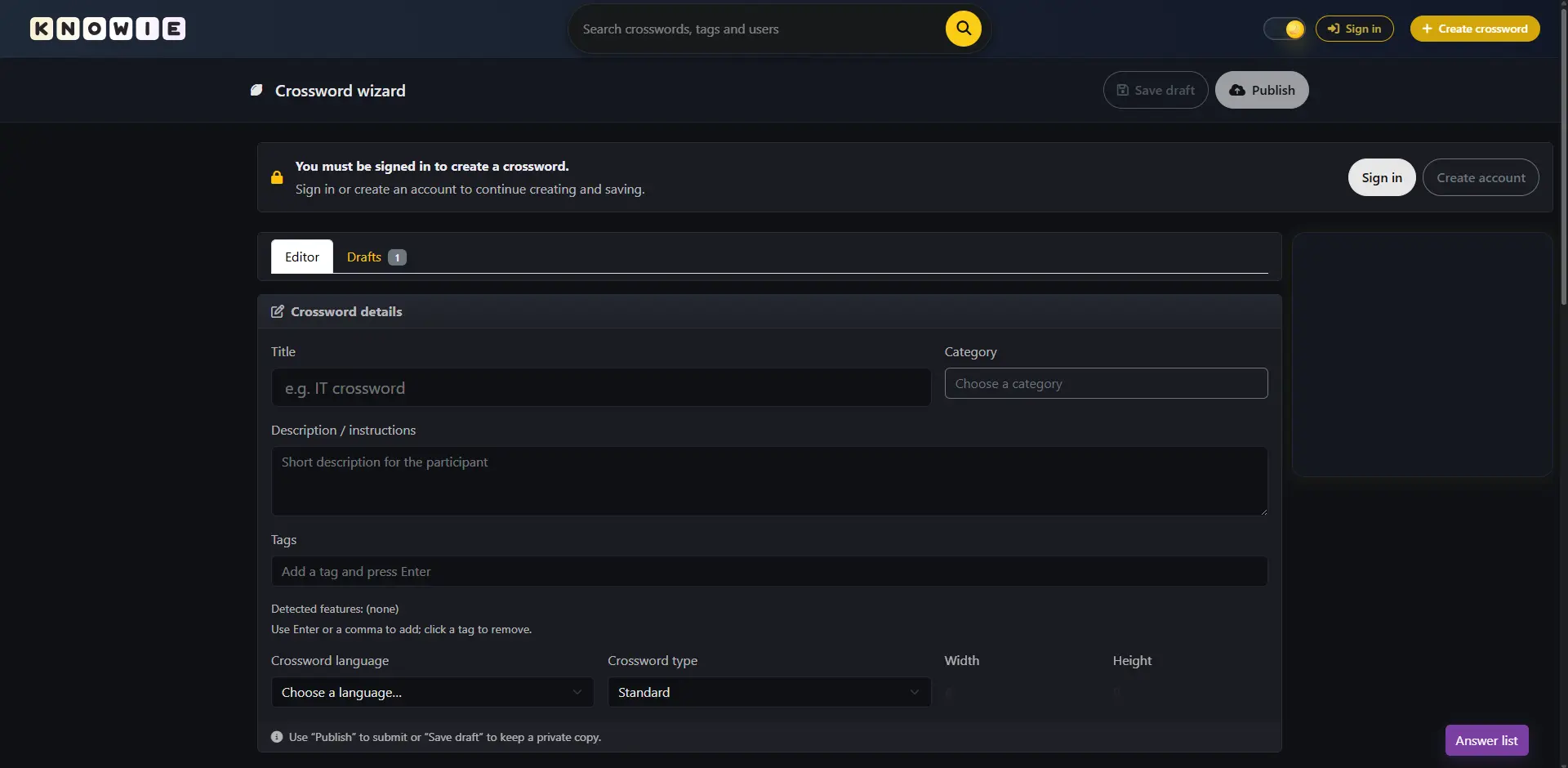 This is where it starts – fill in the basic details of your project.
2. Navigation and Workspace
Designing a larger grid requires smooth navigation. You’re not limited to a small window.
- Zoom: In the top-right corner, you’ll find zoom controls. You can also use your mouse wheel or touchpad gestures.
- Full Screen: Planning a big crossword? Switch to full-screen mode to use your entire monitor space.
3. The Readability Rule (Eye Icon)
This is the point I pay special attention to as an admin. On Knowie, every crossword must be readable.
- The “Breathing Space” Rule: Every vertical answer must have an empty cell above it, and every horizontal answer must have an empty cell before it. This makes it immediately clear where each word starts.
- Eye Icon: Clicking the eye reveals so-called red cells. These are forbidden zones where no letters can appear. They always exist to prevent unreadable word blocks — the eye icon simply lets you preview them while working.
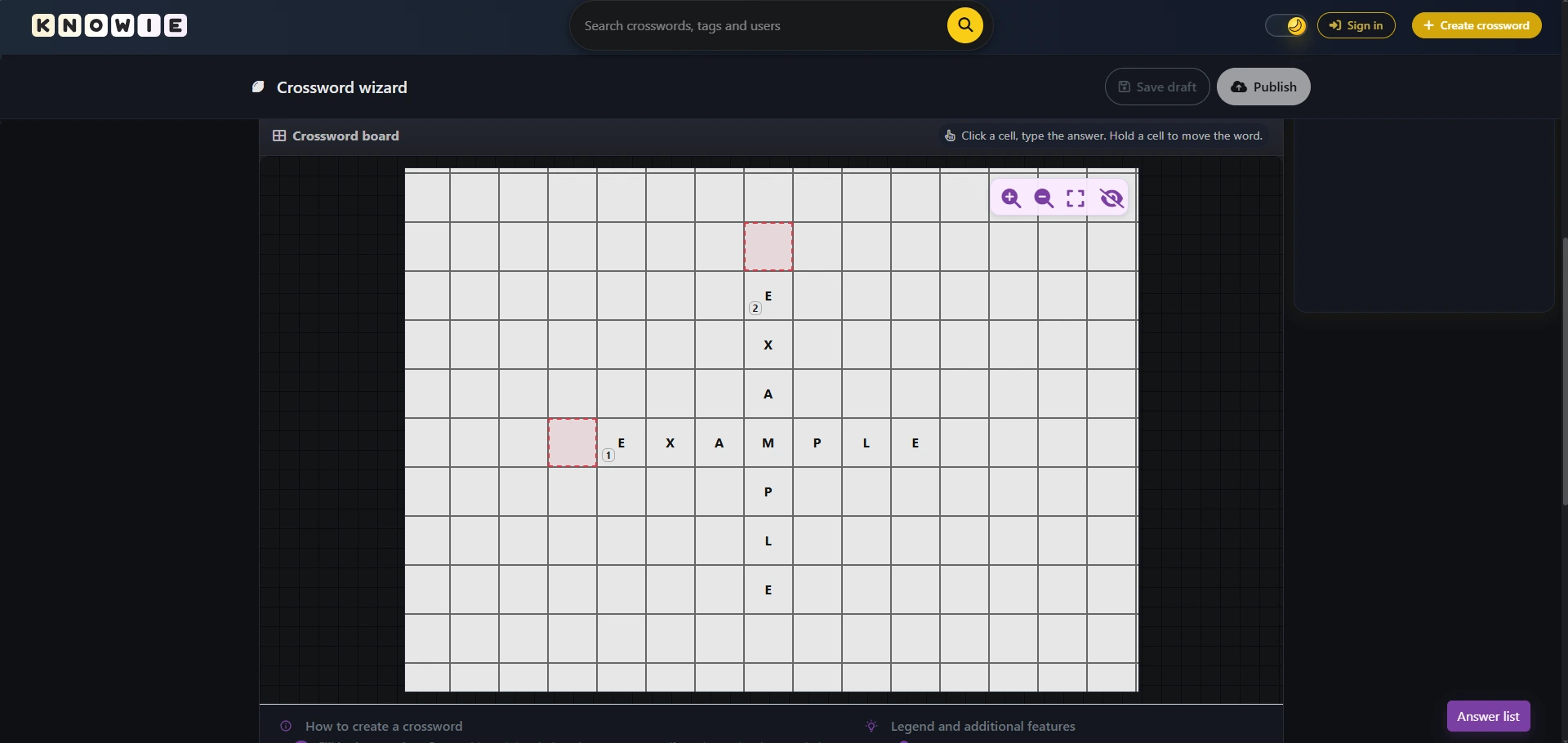 Preview of “forbidden cells” (red zones) after enabling the eye icon.
4. Adding Answers and the Role of Sources
Click on an empty cell and start building. The system will show you an orientation arrow — if you want to type in the other direction, just click it.
- Clue and Answer: Enter the clue text and its solution.
- Source: This field is crucial to me. Knowie is meant to be a repository of reliable knowledge. If your clue is difficult or niche, provide a source. Remember that during approval I may ask for a link to verify the answer before publication.
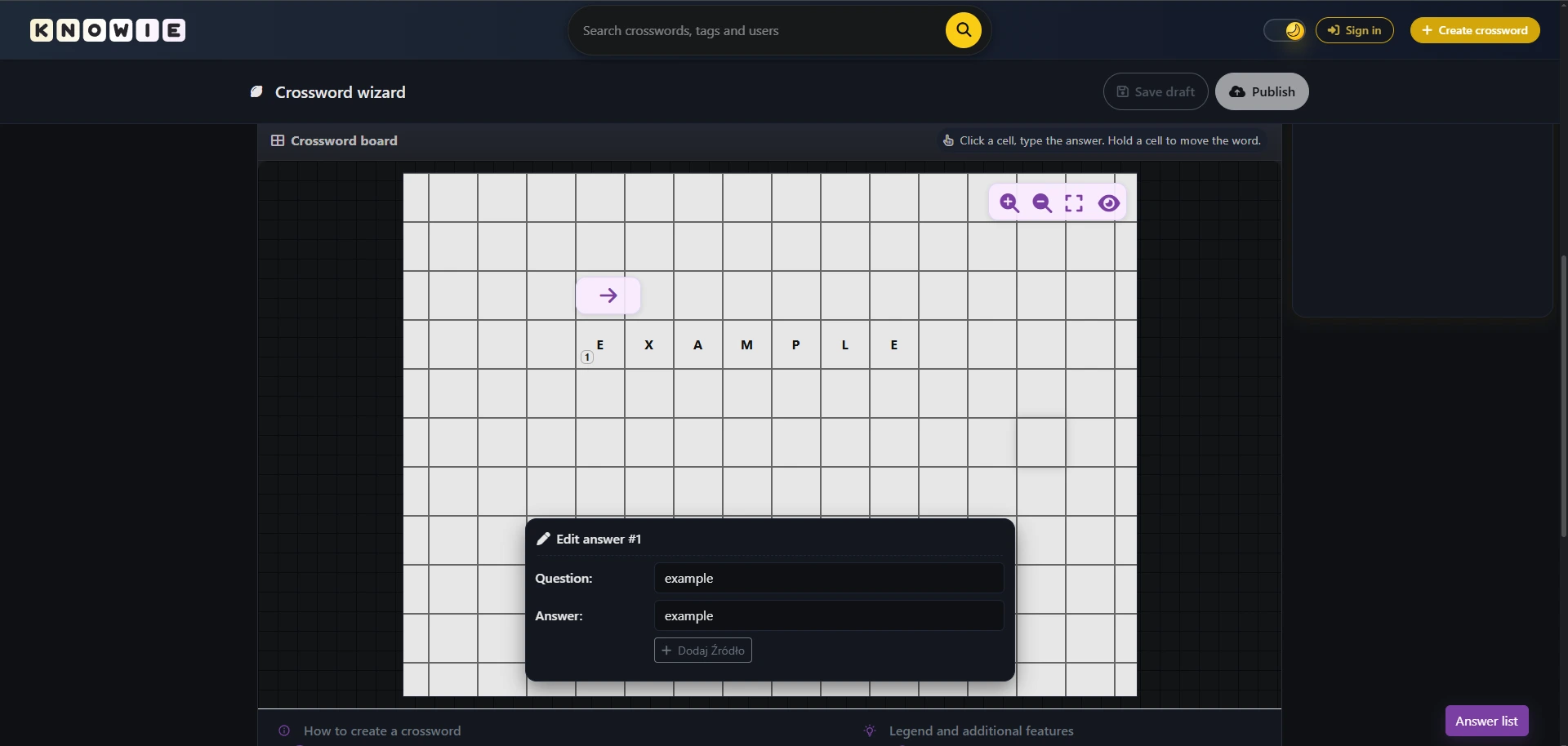 Answer editing window – visible grid and the clue input panel. Remember to add sources for more difficult clues.
5. Admin Tip: The “Two Arrows” System
This feature speeds things up more than anything else. Once you’ve entered an answer and click on its first letter, you’ll see two arrows:
- Edit arrow: Quickly edit the current clue.
- Opposite arrow: Instantly add a new answer that crosses the existing one. This is the fastest way to build dense, professional-looking grids.
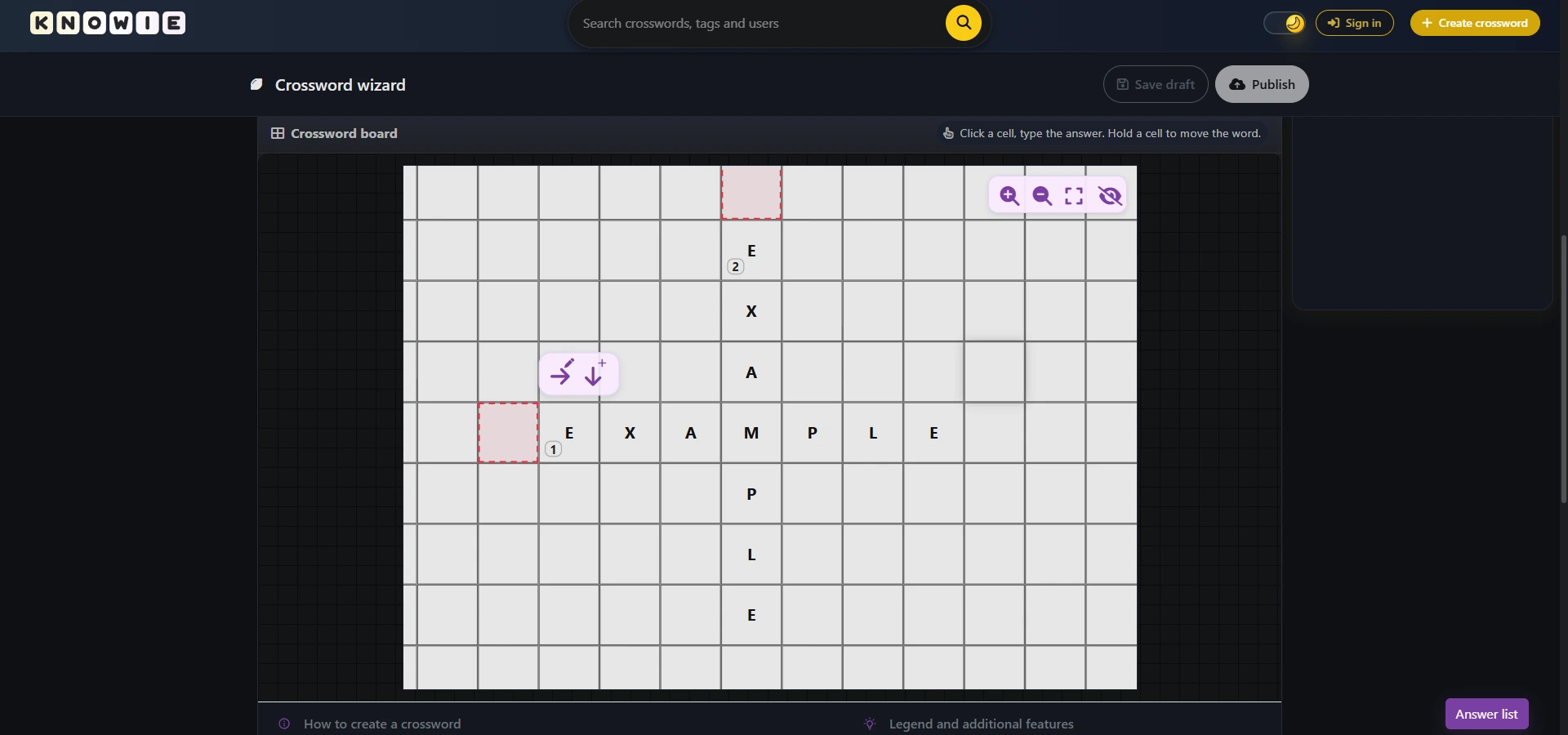 Use the two arrows to efficiently “cross” words on the grid.
6. Managing the Whole Crossword
You don’t need to hunt for words on the board to make changes. In the bottom-right corner, you always have access to the Answer List, where you can review and edit all definitions at any time.
Finally, remember: if you need a break, use Save draft. Your work will be saved to your profile, and you can come back to it whenever you like.